
Alano CRM LinkedIn Extension
The Alano CRM LinkedIn Extension lets you capture, enrich, and manage LinkedIn profiles directly inside your CRM — without switching tabs or copy-pasting data.
On this page
- Overview
- What you will need
- Step 1: Install the Alano CRM Extension
- Step 2: Open LinkedIn
- Step 3: Run the Alano extension on a profile
- Step 4: Add the profile to Alano
- You can:
- Step 5: Enrich the profile with AI
- Step 6: Recognize existing contacts instantly
- Step 7: Keep profiles up to date
- Tips & best practices
- Why use the Alano CRM Extension?
It’s the fastest way to turn LinkedIn into a live, AI-powered lead source.
What you will need
-
Google Chrome (or any Chromium-based browser)
-
A LinkedIn account
-
An active Alano CRM account (free plan supported)
Step 1: Install the Alano CRM Extension
Open the Chrome Web Store
-
Search for Alano CRM Extension or download via this link.
-
Click Add to Chrome
-
Confirm by clicking Add extension
Once installed, the Alano icon will appear in your browser toolbar.
Step 2: Open LinkedIn
-
Go to https://www.linkedin.com
-
Open any LinkedIn profile (personal or company-related)
-
The Alano extension automatically detects LinkedIn pages — no manual setup required.
Step 3: Run the Alano extension on a profile
When you’re viewing a LinkedIn profile:
-
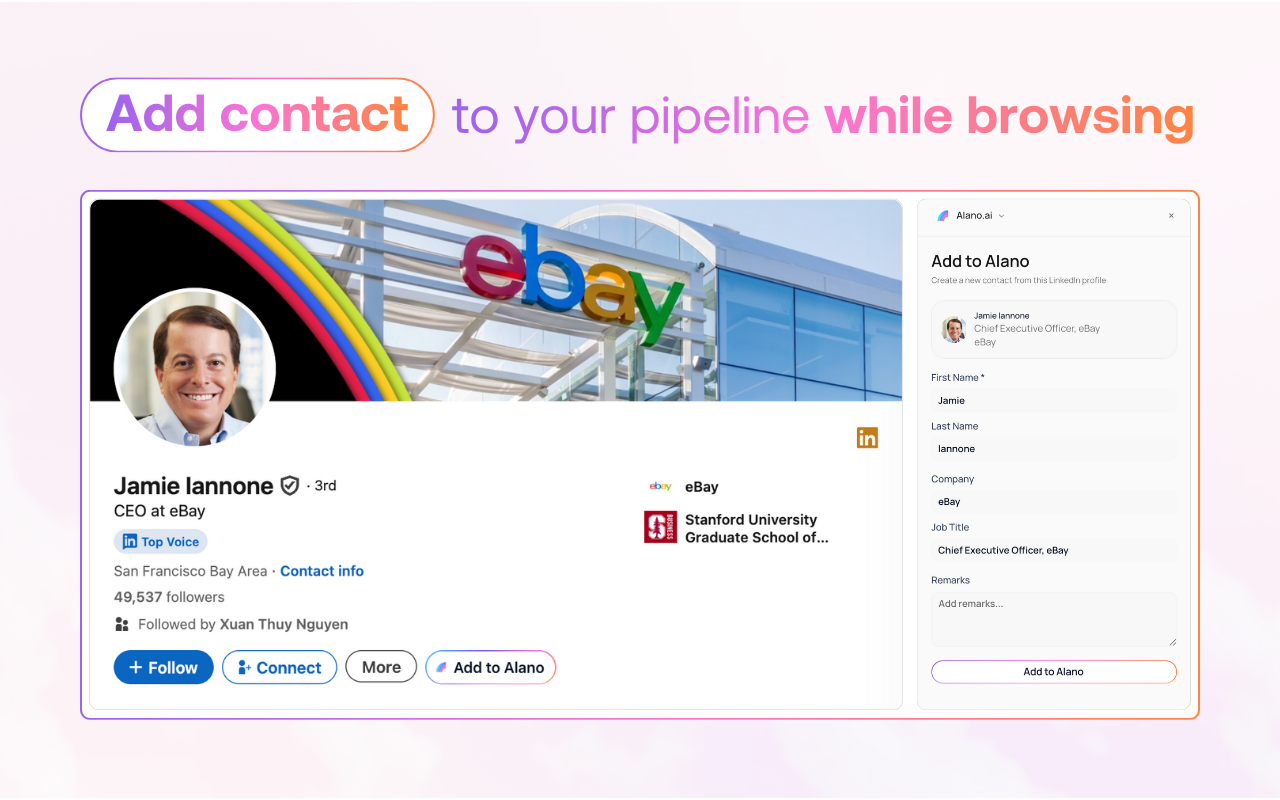
A button labeled “Add to Alano” will appear
-
You can also click the Alano extension icon to open the sidebar
-
This opens the Alano CRM sidebar with AI-powered actions.
Step 4: Add the profile to Alano
From the extension sidebar, you can choose how to save the profile:
You can:
-
Add as a new contact
-
Add to an existing customer
-
Create a new customer and add the contact to it
Alano will automatically:
-
Capture profile details
-
Enrich the contact with AI
-
Link the contact to the right records in your CRM
-
No manual data entry needed.
Step 5: Enrich the profile with AI
Inside the extension sidebar, you can:
-
Enrich the contact with additional data
-
View role, background, and relationship context
-
Update notes or information instantly
All changes sync directly back to Alano CRM in real time.
Step 6: Recognize existing contacts instantly
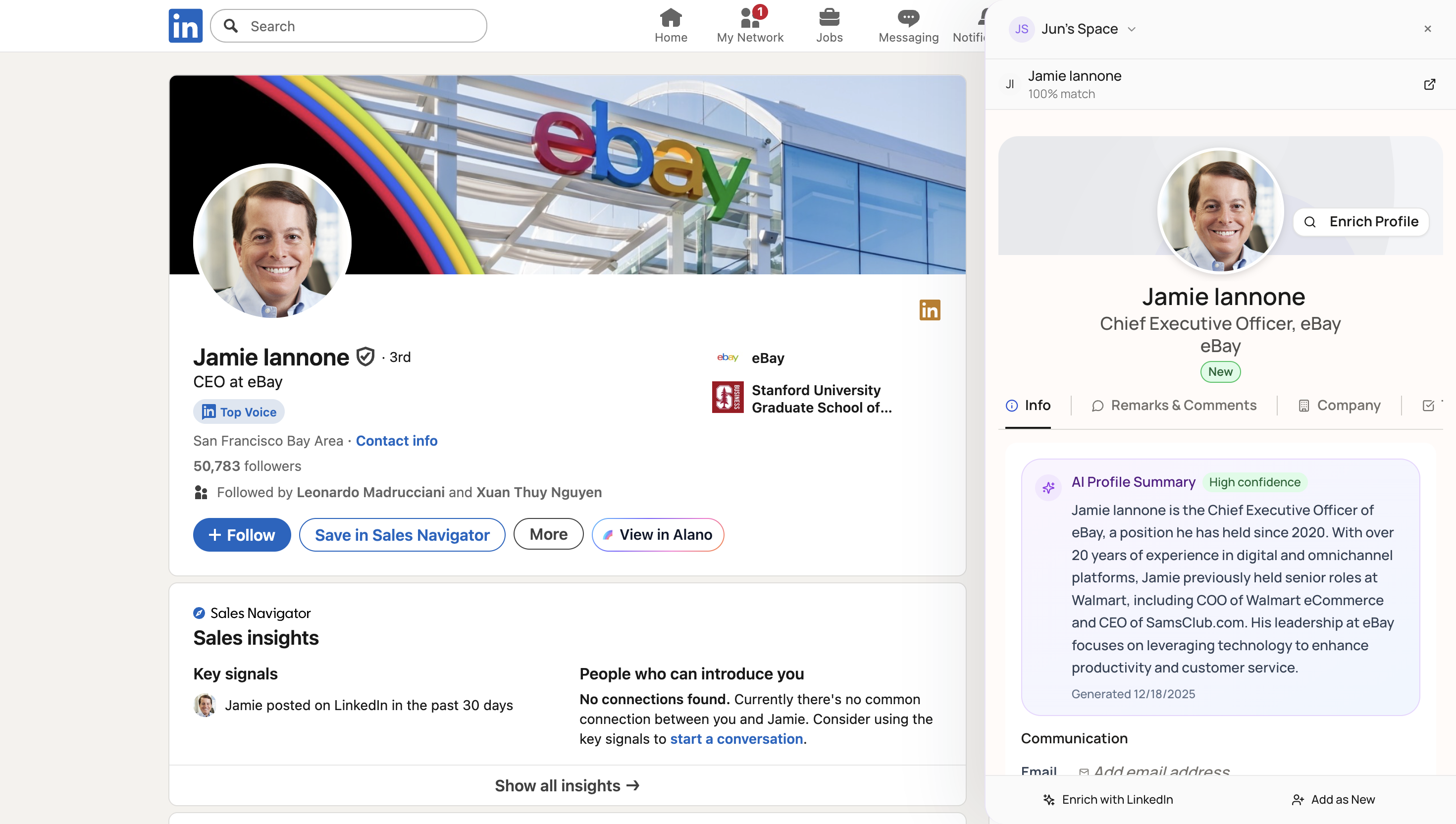
If you scroll LinkedIn and view a profile that’s already in your Alano pipeline:
The button will change from “Add to Alano” to “View in Alano.”
-
Clicking it takes you directly to the contact in your CRM
-
This helps you:
-
Avoid duplicates
-
Stay updated on existing relationships
-
Keep track of changes over time
Step 7: Keep profiles up to date
You can revisit LinkedIn profiles at any time to:
-
Refresh contact information
-
Add new notes
-
Track role or company changes
Alano keeps your CRM continuously updated, without extra work.
Tips & best practices
-
Use the extension while browsing LinkedIn daily, not just during prospecting
-
Add notes right from the sidebar to keep context fresh
-
Use “View in Alano” to jump back into active deals quickly
Why use the Alano CRM Extension?
-
Turn LinkedIn into a live CRM data source
-
Reduce manual work and duplicate entries
-
Keep contacts, customers, and pipelines always in sync
-
Fully supported on the free plan