
Smart AI Input
Smart AI Input lets you quickly create contacts in Alano by pasting information instead of manually filling out fields.
On this page
You can log leads by pasting:
-
Screenshots (images)
-
Email signatures (text)
-
LinkedIn profile snapshots
-
Any mixed text or image content containing contact details
Step 1: Open Smart AI Input
-
Click Add Contact
-
Select Smart Input
This opens the Smart AI Input panel.
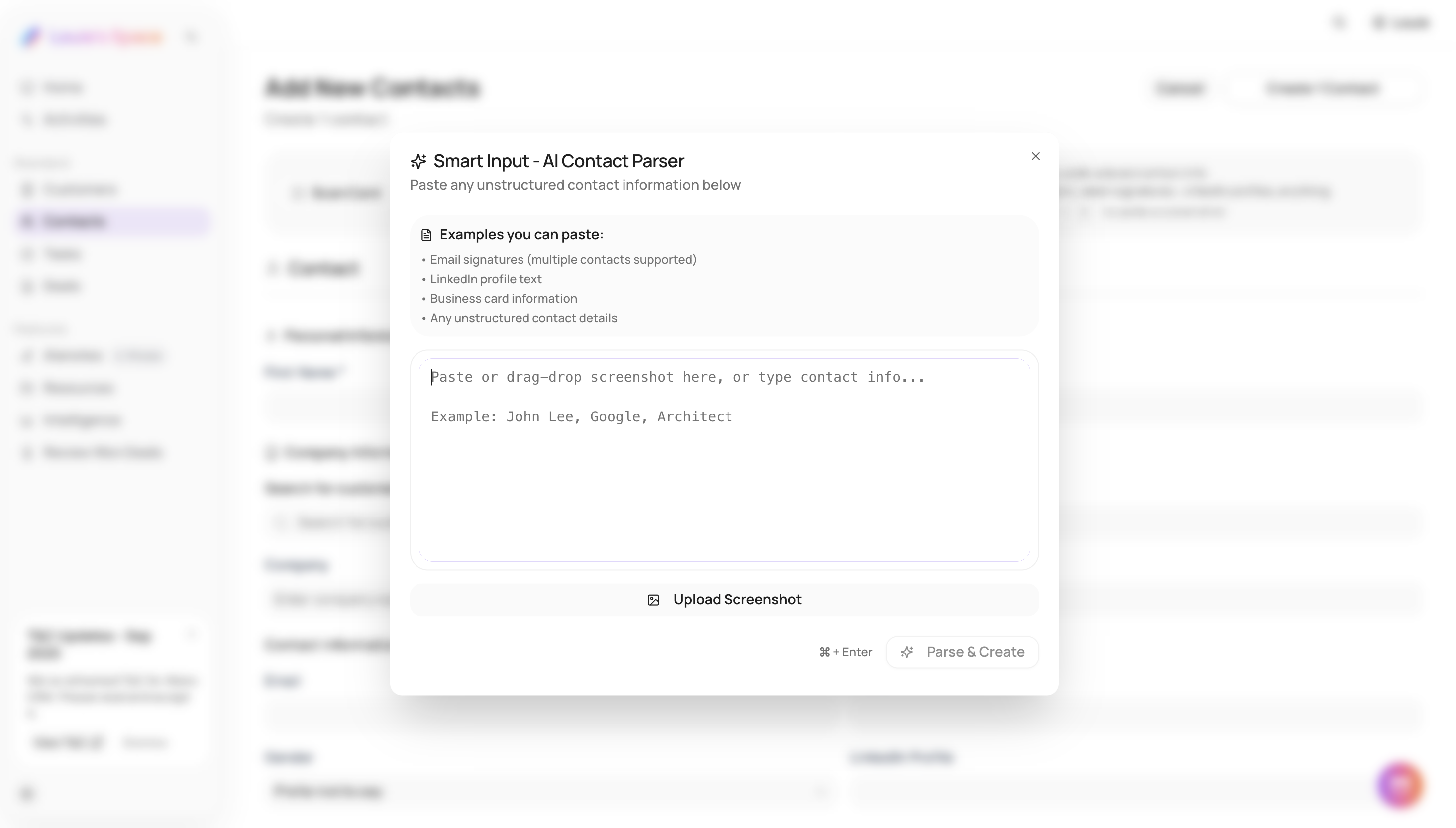
Step 2: Paste your content
Paste any of the following into the input area:
-
Screenshot of a contact (image)
-
Email signature text
-
LinkedIn profile snapshot
-
Any copied text containing contact details
You can paste images, text, or a combination of both.
Step 3: Review extracted information
Once pasted, Alano analyzes the content and extracts contact details automatically.
Review the detected information and make edits if needed.
Step 4: Save the contact
After reviewing, choose how to save the contact:
-
Add as a new contact
-
Add to an existing customer
-
Create a new customer and add the contact
Proceed to save the contact in Alano.
View our clear instructions here on LinkedIn.