
Field-Level Access Control (Standard Objects)
On this page
Field-level access control lets you decide who can see or edit specific fields on standard CRM objects like Customers, Contacts, Deals, and Tasks.
This gives your team the flexibility to share the right information, without exposing everything to everyone.
It’s a powerful permission layer that most CRMs don’t offer.
How it works
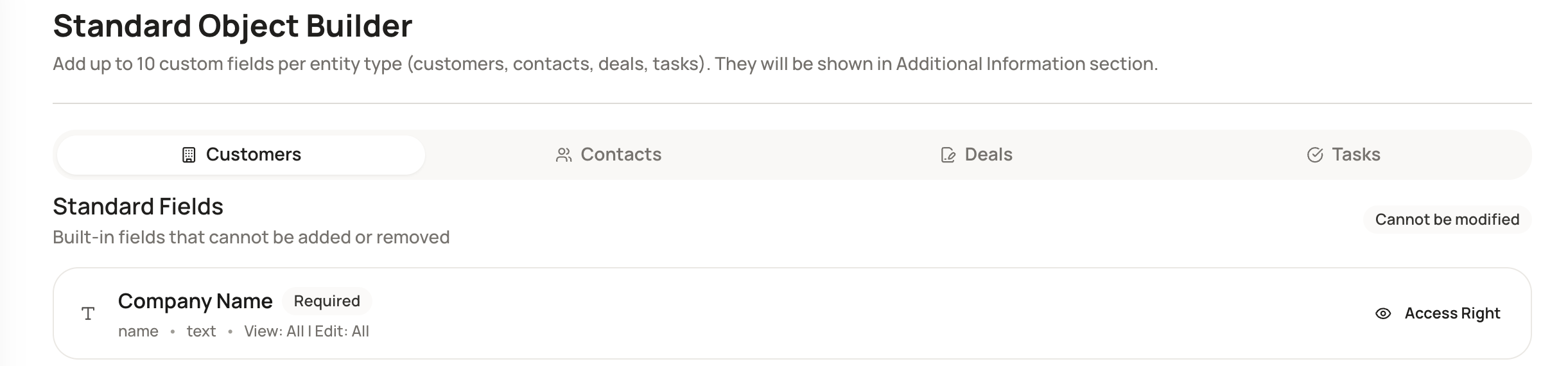
Step 1: Open Standard Object Builder
-
Go to Settings
-
Select Standard Objects → Custom Fields
-
Choose the object you want to manage (Customers, Contacts, Deals, or Tasks)
Step 2: Select a field
-
Find the field you want to control
-
Click Access Right on the right side of the field
Step 3: Configure access rights
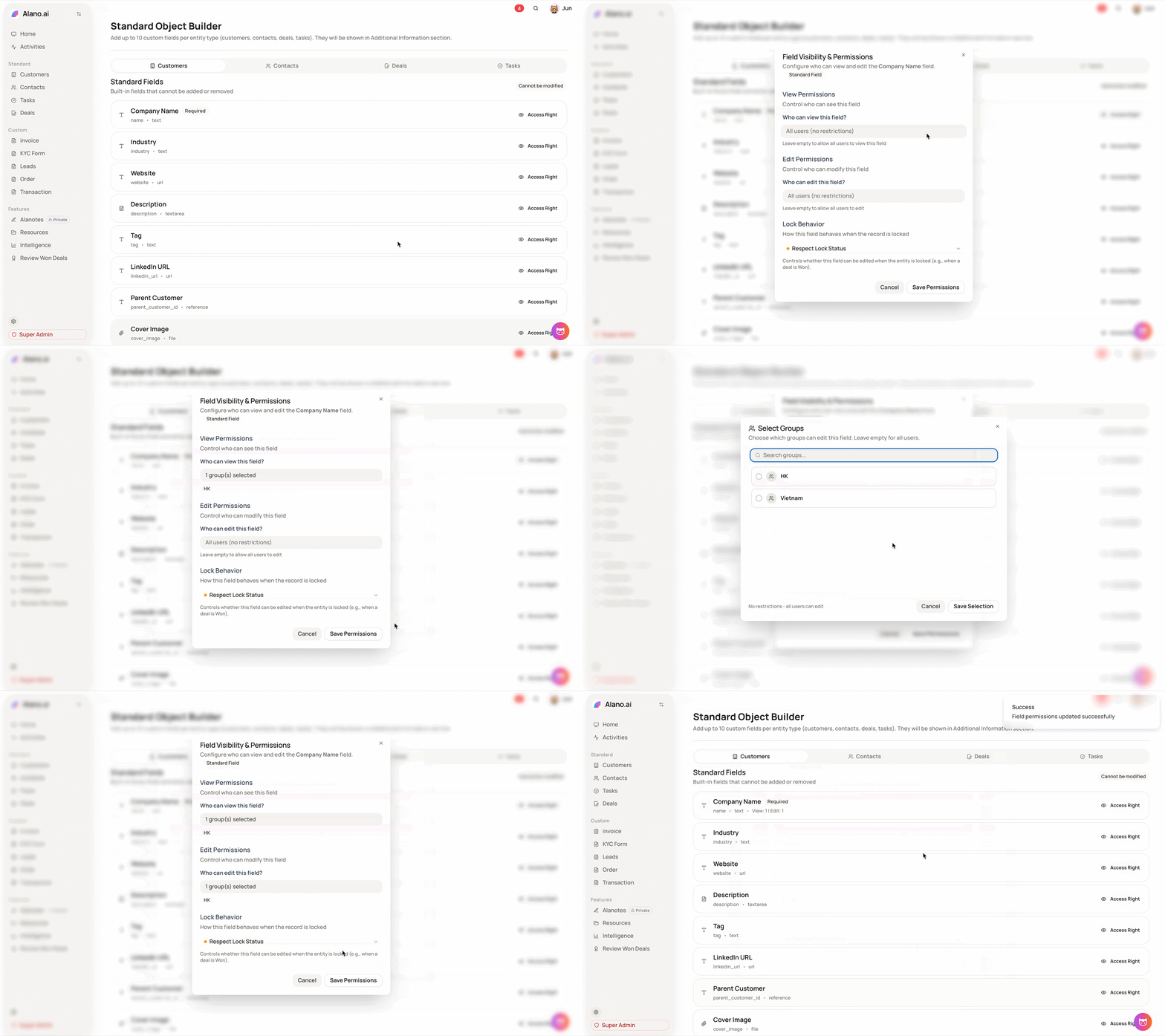
You can now define how this field behaves:
-
View Permissions
Choose which users or groups can see this field -
Edit Permissions
Choose which users or groups can edit this field -
Lock Behaviour
Decide how the field behaves when the record is locked
(for example, read-only vs fully restricted)
Step 4: Save permissions
Once configured, save your changes.
The field will immediately follow the new access rules across the CRM.
Why this matters
-
Keep sensitive data visible only to the right people
-
Give sales, ops, and management different access levels
-
Maintain clean data ownership as your team scales
-
Add enterprise-grade control without enterprise complexity
This feature works seamlessly with Alano’s custom fields and object management, giving you fine-grained control while keeping the experience simple and intuitive.