
Rate Limiting
Monitor and configure API protection for your WebToCRM endpoint against abuse and DDoS attacks.
On this page
How it works
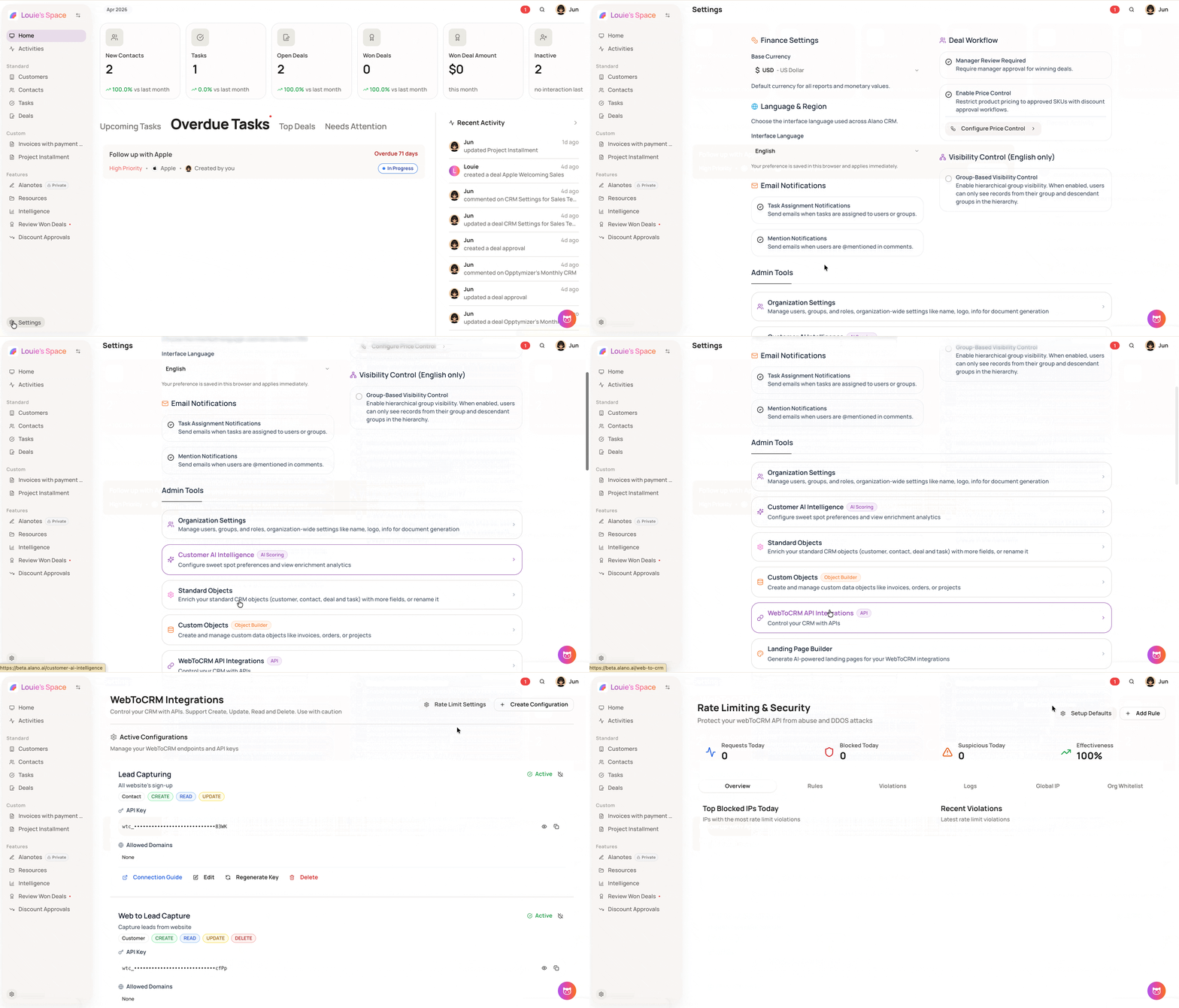
Rate Limiting & Security tracks all inbound WebToCRM requests and measures them against your defined rules. The dashboard shows real-time counts for Requests Today, Blocked Today, Suspicious Today, and overall Effectiveness. When a request exceeds a rule’s thresholds, it is blocked for the duration you specify.
How to configure rate limiting
Step 1: Open Rate Limit Settings
-
Go to Settings
-
Click WebToCRM
-
Click Rate Limit Settings
Step 2: Set up default rules
-
Click Setup Defaults to generate a standard set of protection rules automatically
-
This is optional but recommended as a starting point before adding custom rules
Step 3: Add or tune a rule
-
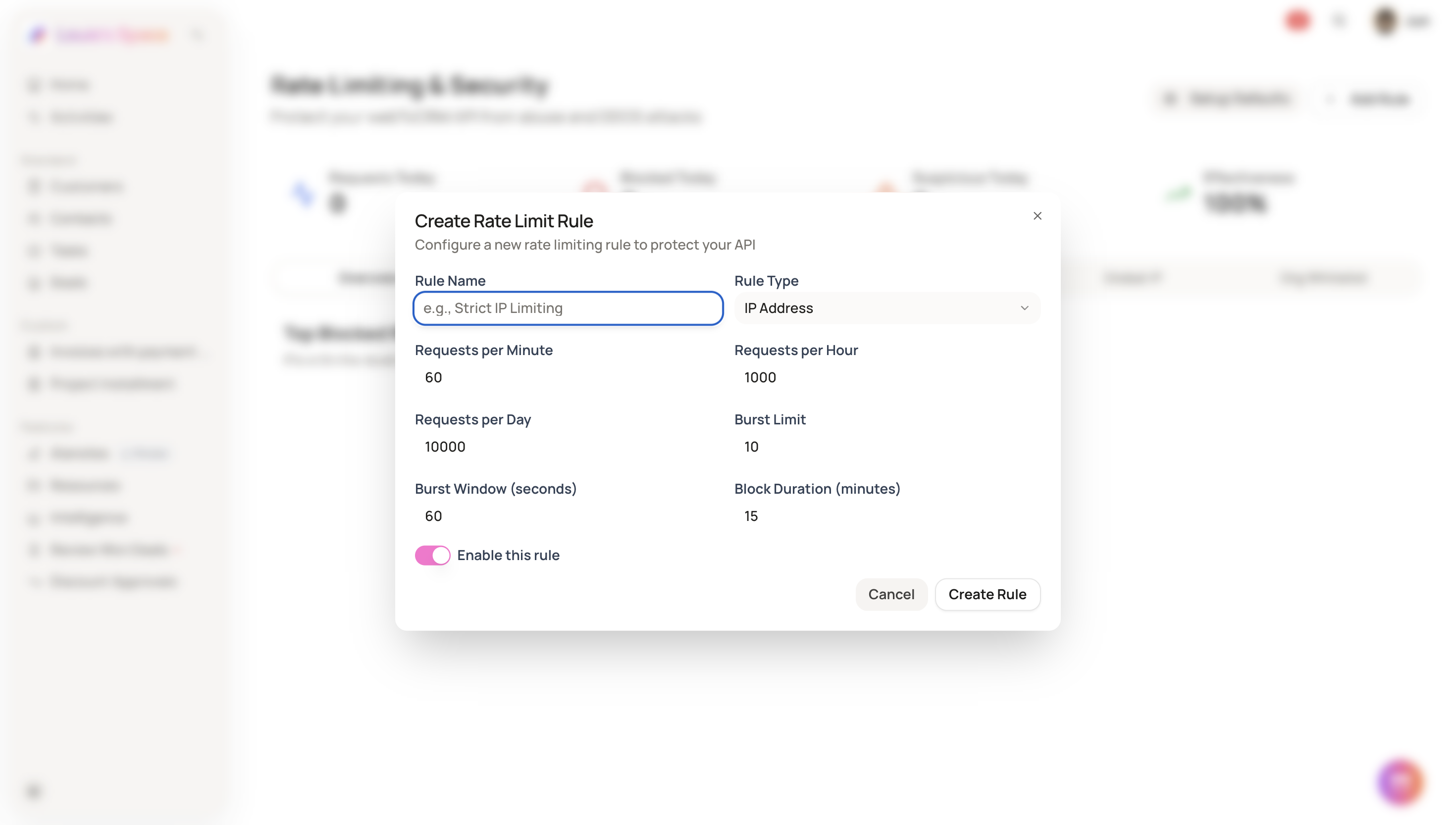
Open the Rules tab and click Add Rule
-
Enter a Rule Name and select a Rule Type
-
Set thresholds for Requests per Minute, Requests per Hour, Requests per Day, Burst Limit, Burst Window, and Block Duration
-
Toggle Enable this rule on and click Create Rule
Step 4: Monitor traffic and manage IP access
-
Use the Violations and Logs tabs to review blocked or suspicious traffic
-
Use Global IP to review IP reputation data
-
Use Org Whitelist to whitelist IPs that should bypass rate-limiting rules
-
Setup Defaults can be run at any time to reset or initialize baseline rules.
-
Rules can be enabled or disabled individually without deleting them.