
List Configuring and Data Viewing
Each custom object list supports search, field filters, selectable columns, and sortable columns, so you can find and view records the way your team needs.
On this page
How to use it
-
Go to Settings
-
Click Custom Objects
-
On the object you want to manage, click View Data
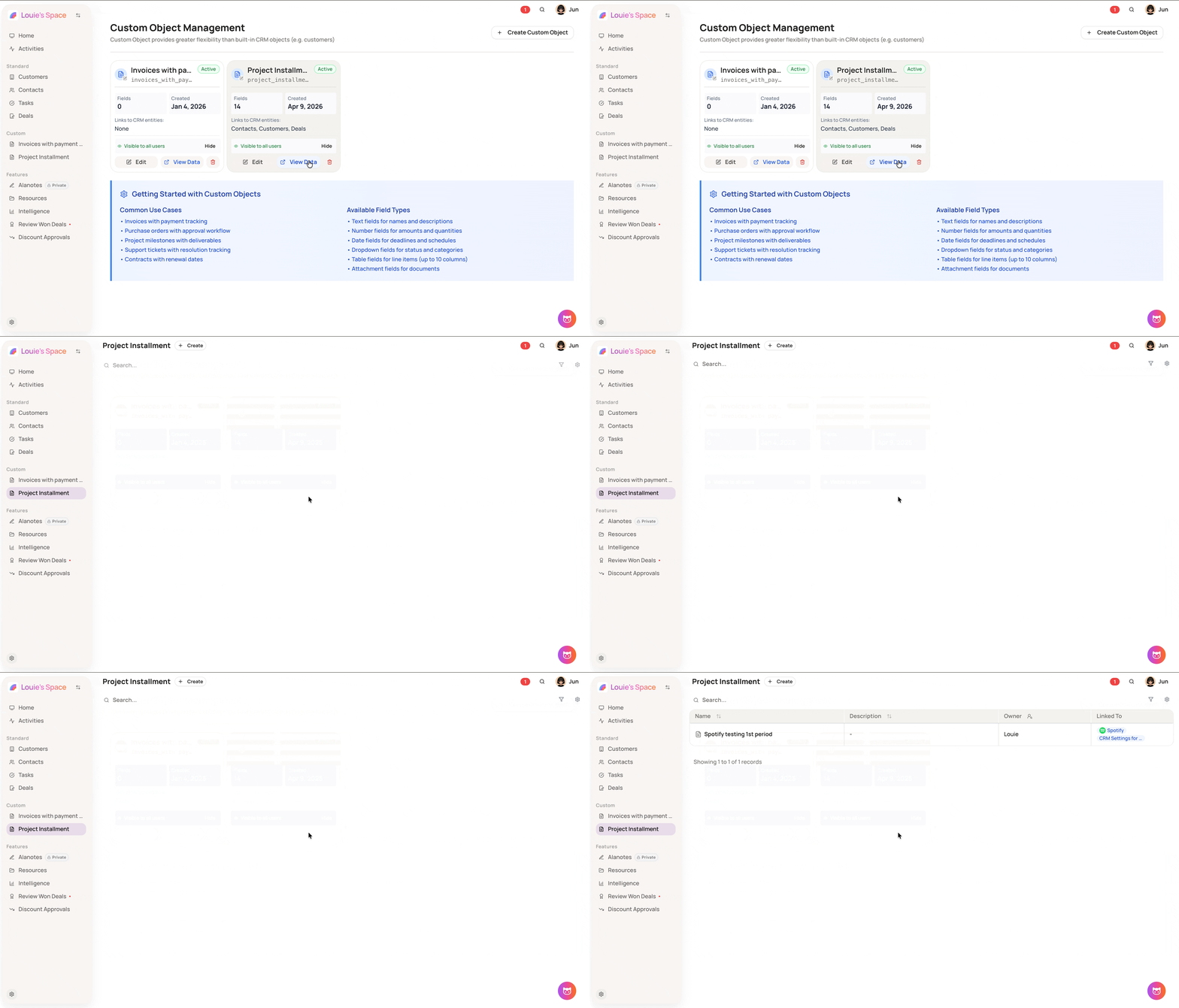
What you can do
-
Search — use the search bar at the top to narrow records by name
-
Filter — click Filter to open the filter modal. Select a field, choose an operator, enter a value, then click Apply Filter to narrow the list by any custom field value
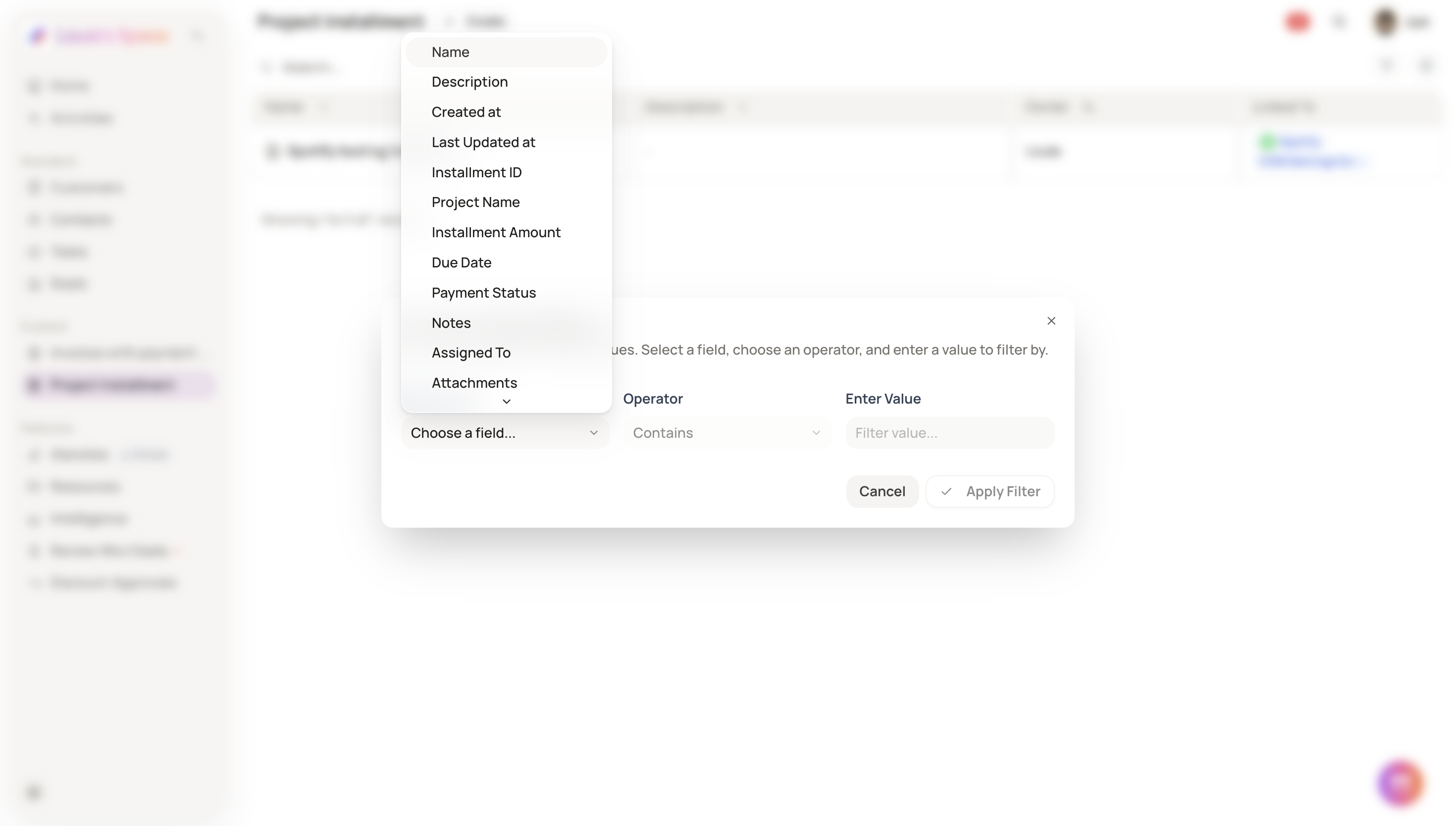
-
Fields — click Fields to choose which custom fields appear as columns in the table. Selected fields appear between the Description and Owner columns. Click Save Selection to apply.
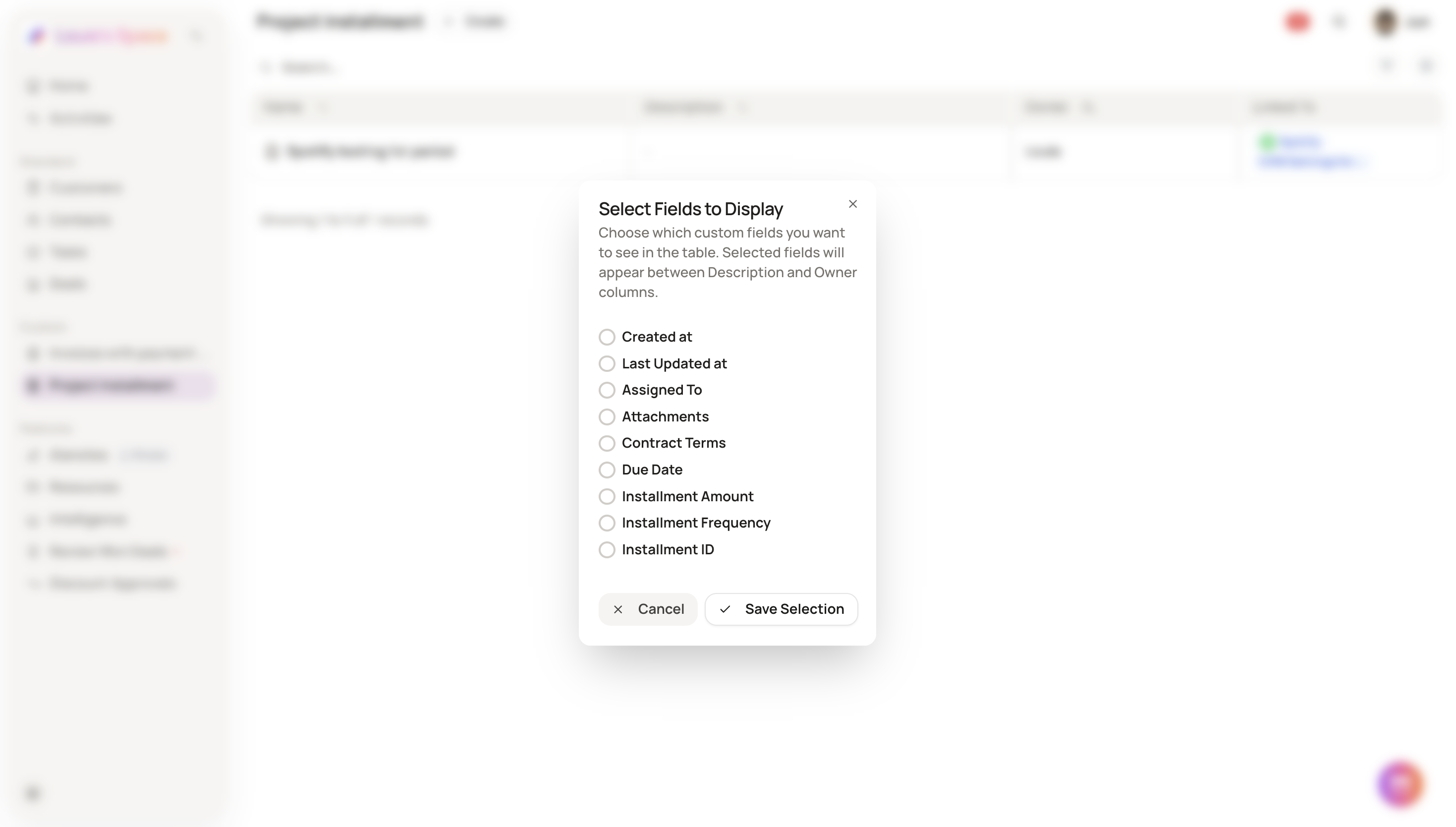
-
Sort — click any column header to sort the list by that field
-
Filters and field selections apply per custom object — each object manages its own view settings independently
-
All custom fields defined for that object are available to filter and display