
Epic
Epics let you group multiple tasks under a larger initiative so you can plan, assign, and track related work in one place.
On this page
How it works
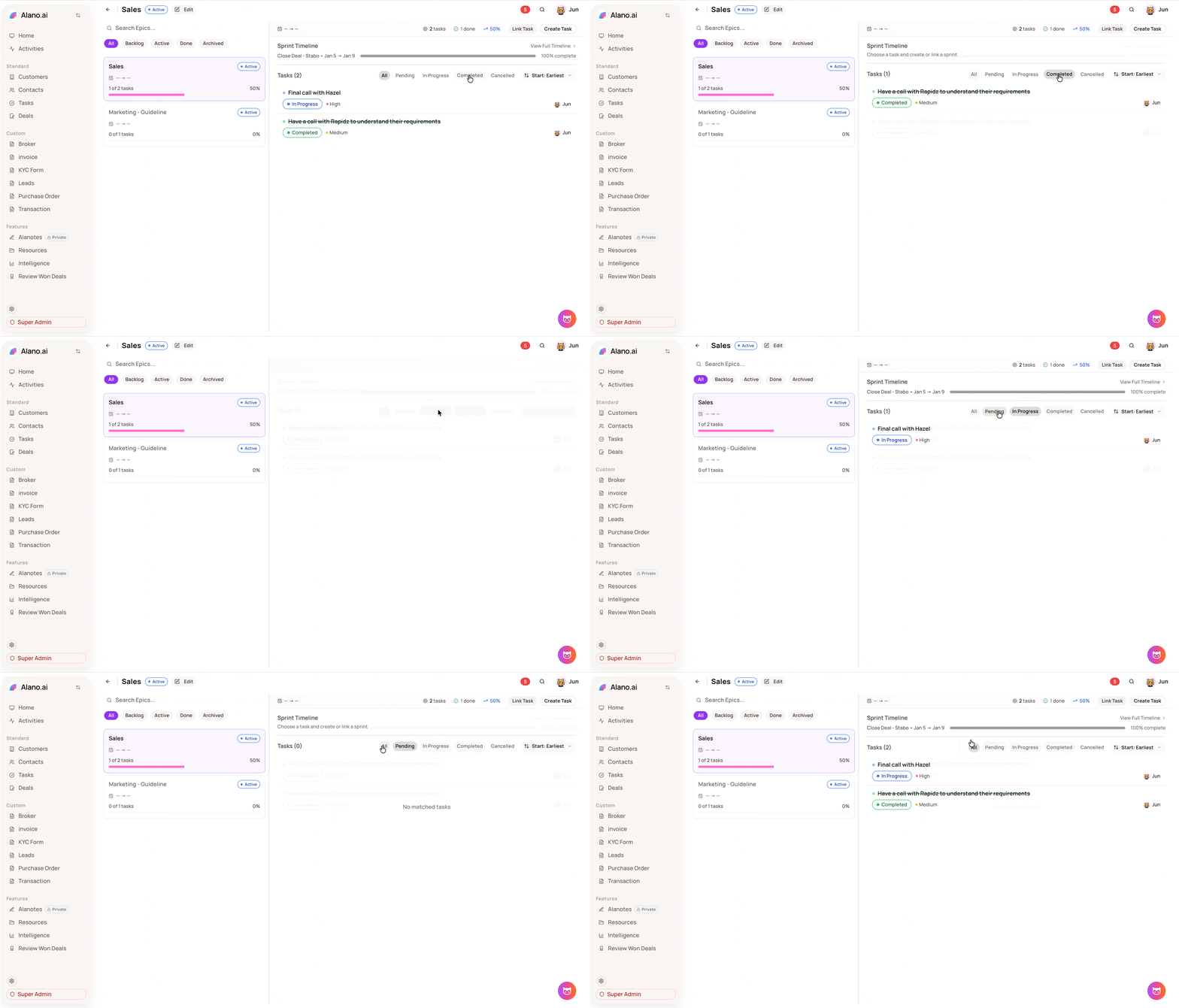
Each Epic has its own title, status, and priority. Tasks linked to an Epic roll up into a shared progress view, showing how many are completed and the overall percentage. Sprint timelines associated with the Epic are also visible from the Epic detail panel.
How to create and manage Epics
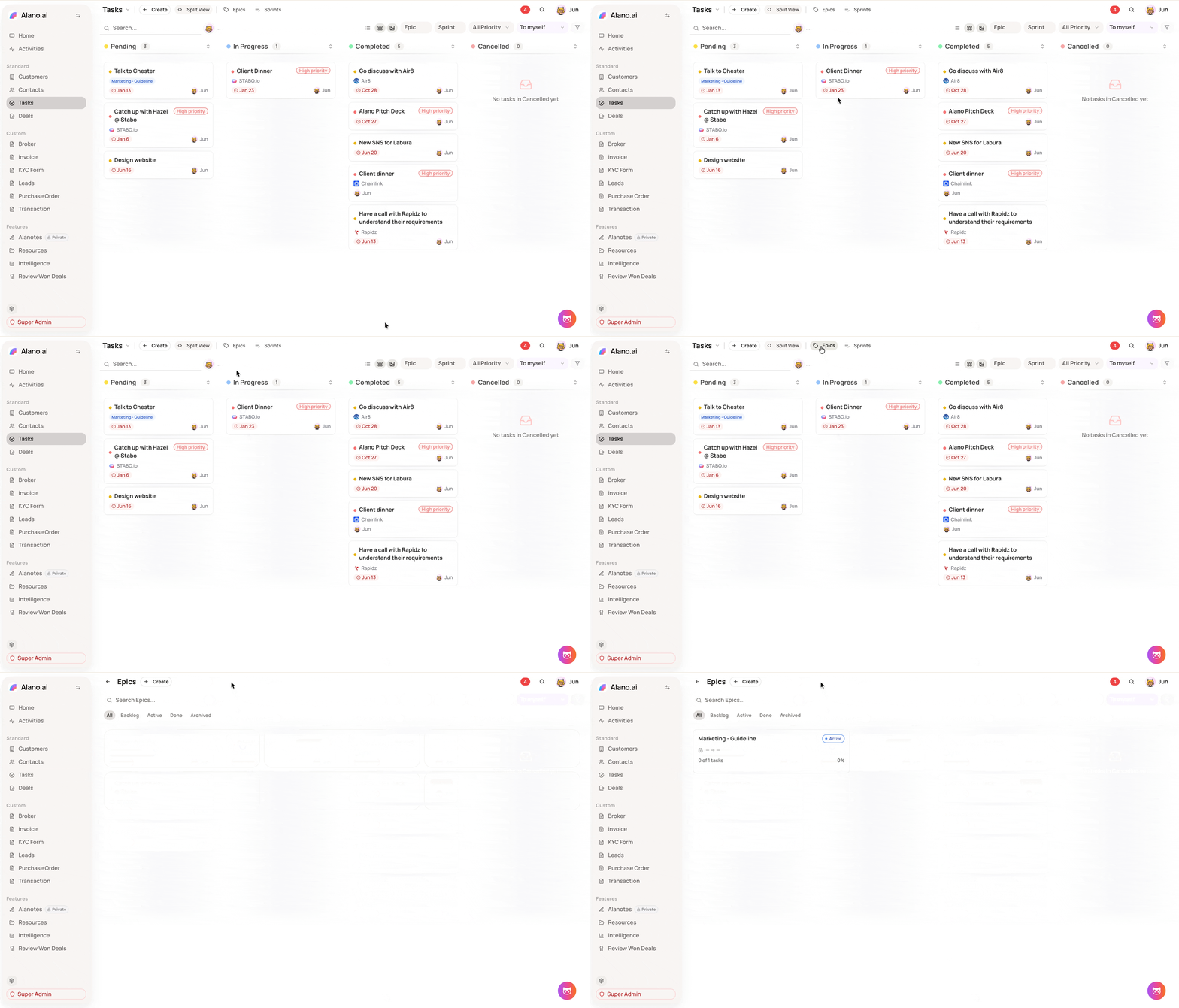
Step 1: Open Epics
-
Go to Tasks
-
Click Epics in the top navigation bar
Step 2: Create an Epic
-
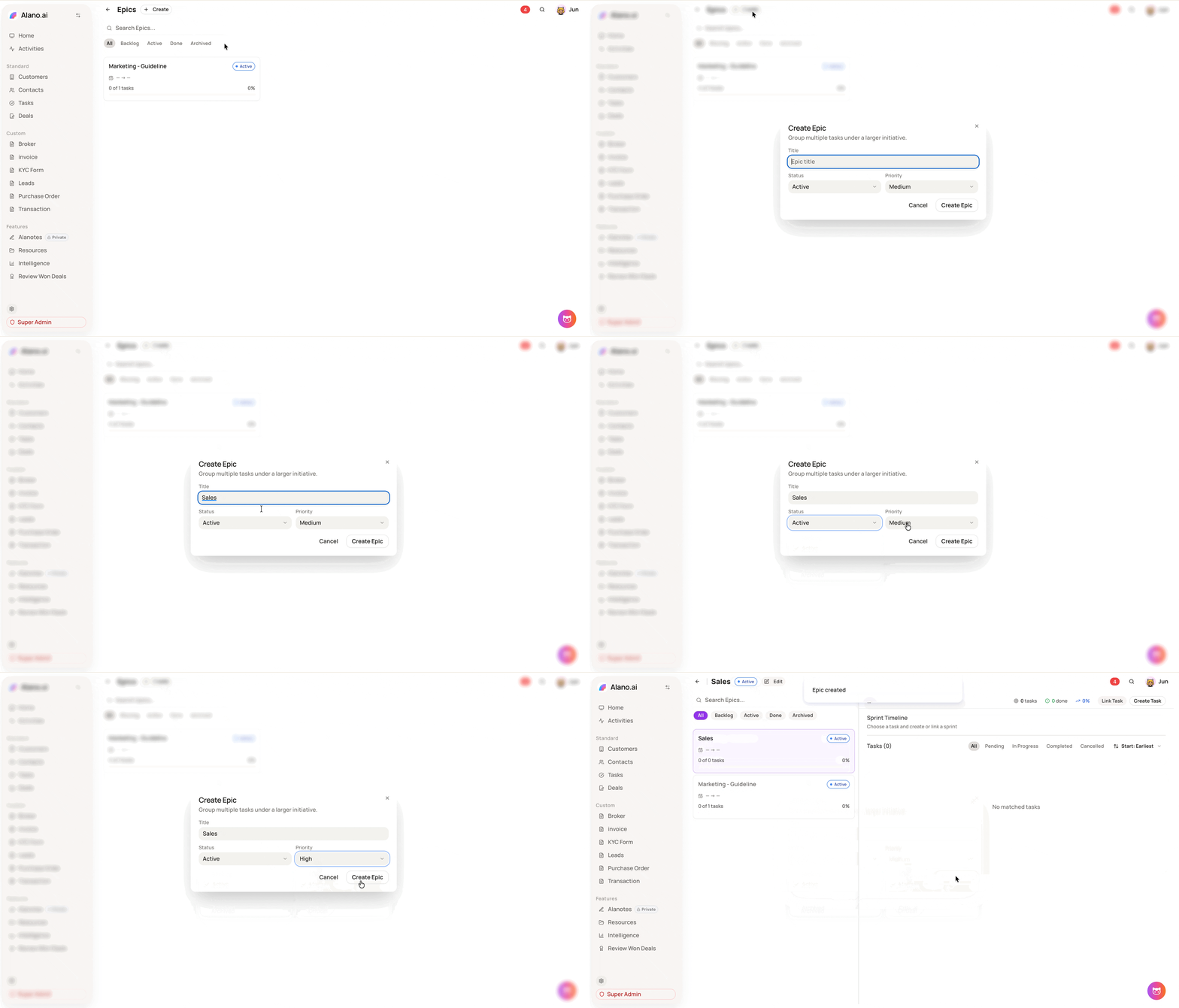
Click + Create
-
Enter an Epic title
-
Set the Status and Priority
-
Click Create Epic
Step 3: Add tasks to the Epic
From within the Epic detail panel, you can:
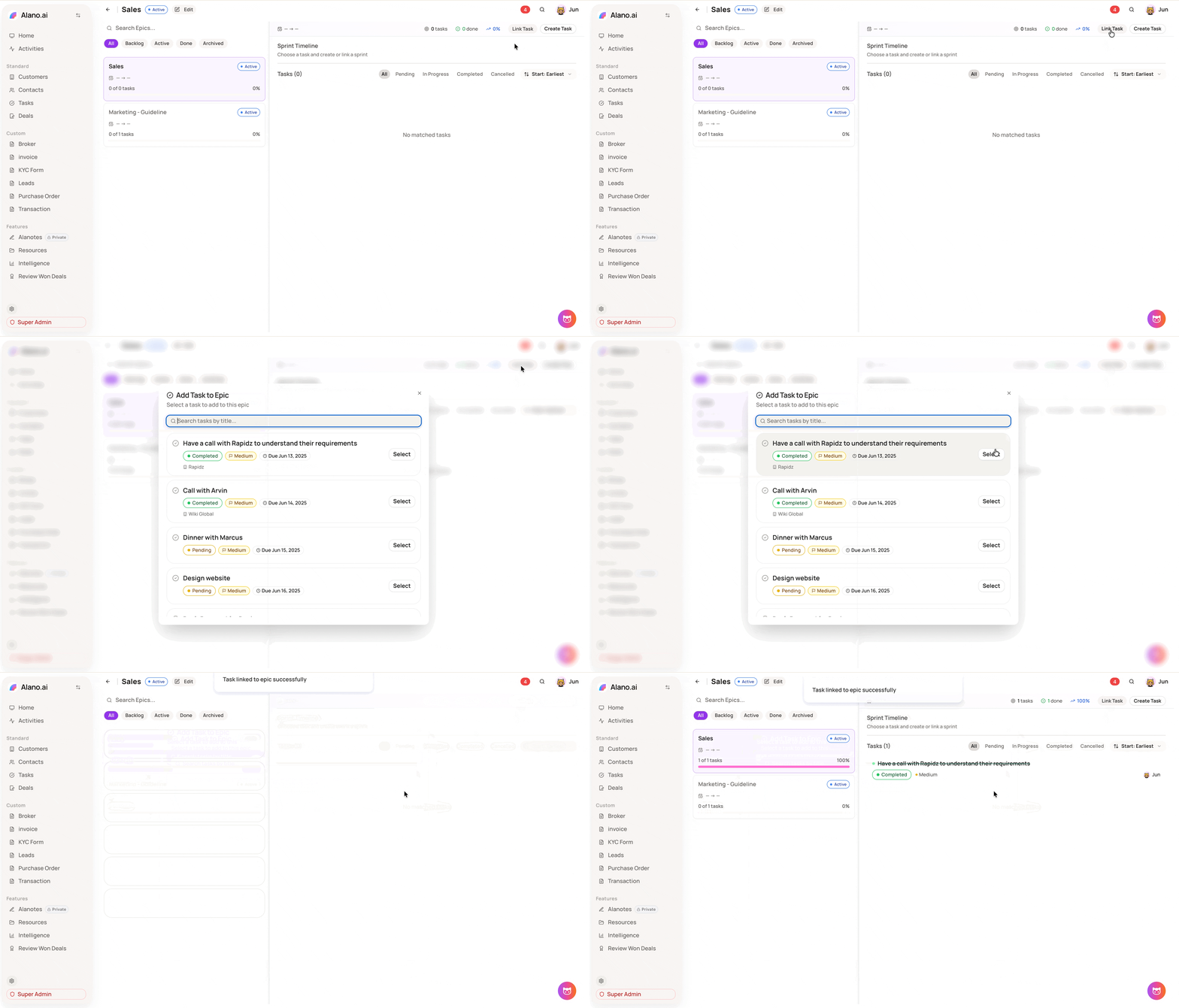
- Click Link Task to attach an existing task
- Click Create Task to add a new task directly under the Epic
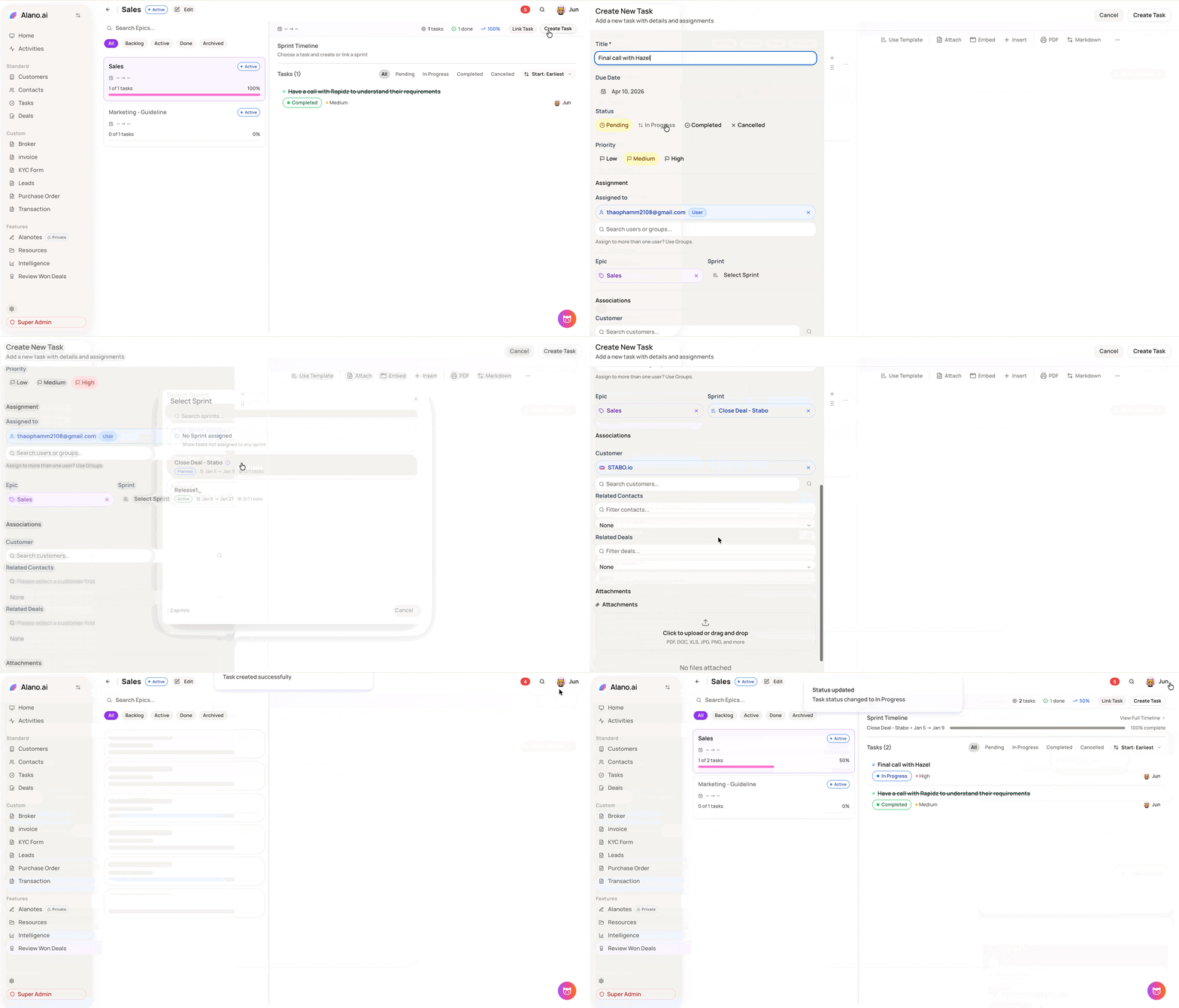
You can also assign a task to an Epic from the task’s Planning panel by selecting the Epic field.
Step 4: Monitor progress
Open the Epic to view total tasks, completed count, and overall completion percentage. The Sprint Timeline shows all associated sprints with their date ranges and completion status. Use the status filter tabs - Pending, In Progress, Completed, and Cancelled - to review tasks within the Epic.
Notes:
-
Epics can be filtered by status: Backlog, Active, Done, and Archived
-
Tasks assigned to an Epic display the Epic label on their task card in the board view
-
You can update an Epic’s title or status at any time using the Edit button in the Epic detail panel
Epics are useful for teams managing multiple workstreams, keeping related tasks connected under a single initiative without losing visibility into individual task progress.