
Custom Fields
Custom Fields let you add task-specific fields to extend the standard Task object with additional information your team needs to capture.
On this page
How it works
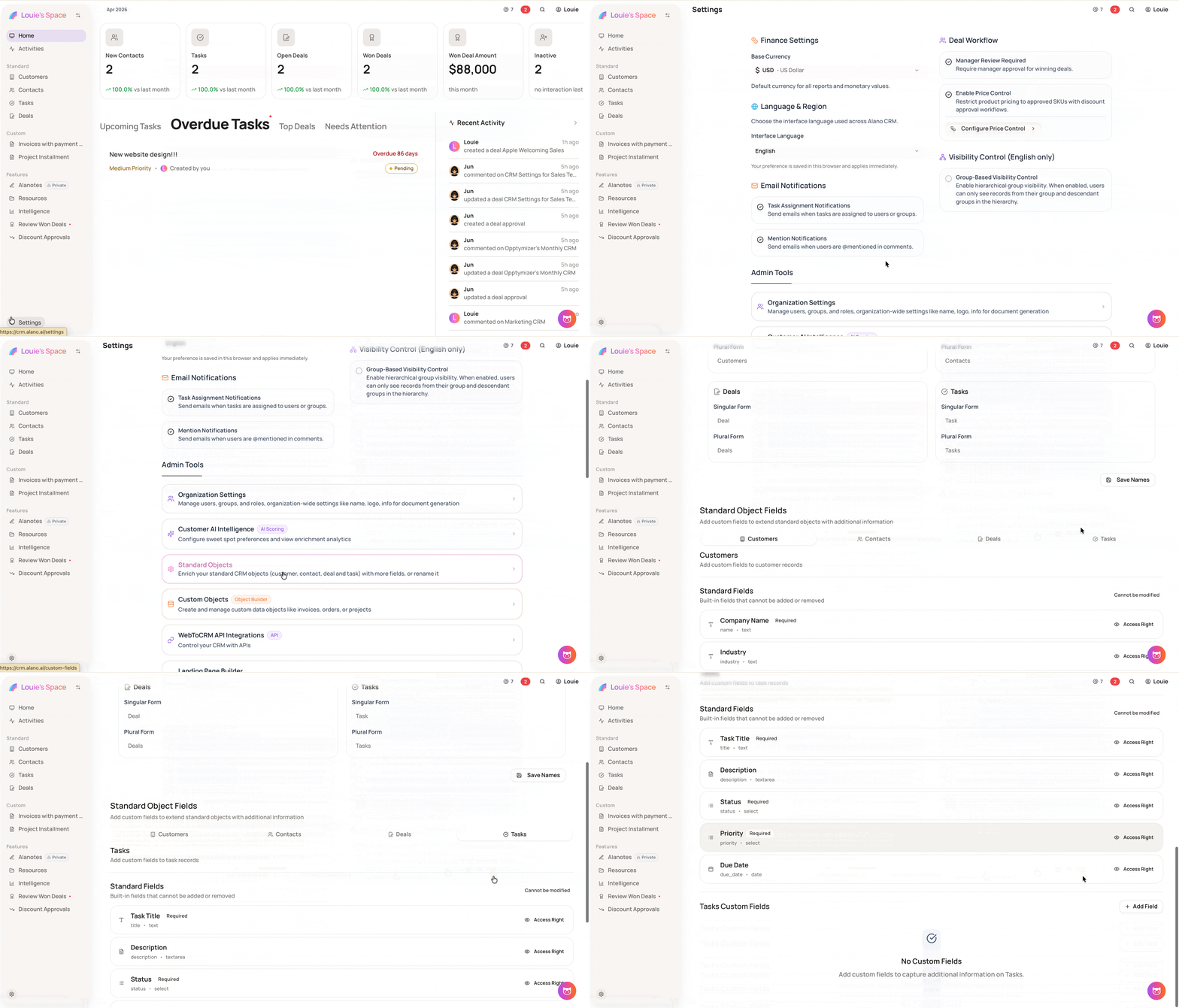
Standard fields (Task Title, Status, Priority, Due Date) are built-in and cannot be modified. Custom fields are added on top of these and can be configured with their own field type, lock behavior, and access rights.
Step 1: Open Standard Object Fields
-
Go to Settings
-
Select Standard Objects
-
Select Standard Object Fields
-
Click the Tasks tab
Step 2: Add a custom field
-
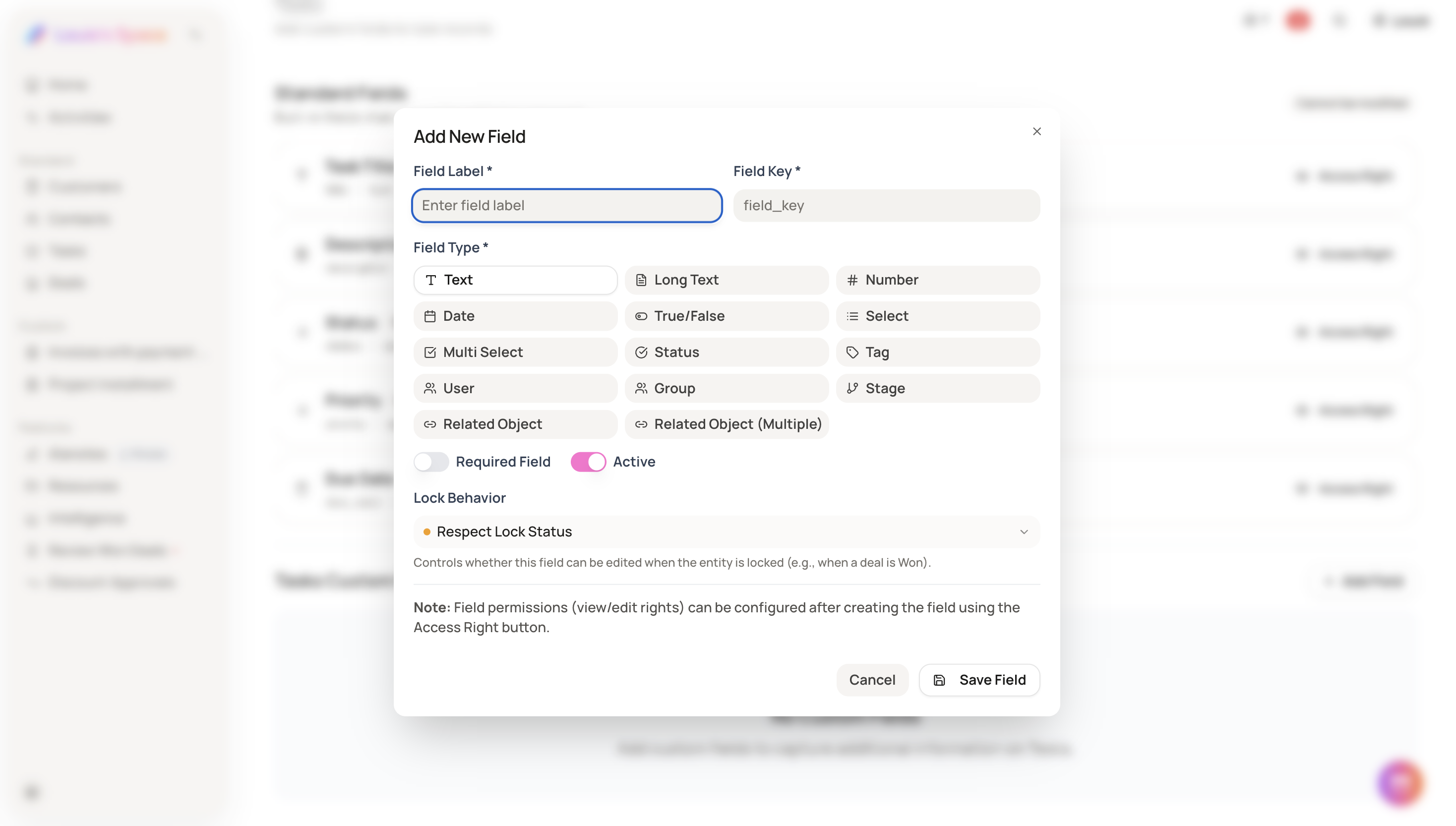
Click Tasks Custom Field then + Add Field
-
Fill in the field details:
-
Field Label — the display name for the field
-
Field Key — auto-generated from the label, used as the system identifier
-
Field Type — select from: Text, Long Text, Number, Date, True/False, Select, Multi Select, Status, Tag, User, Group, Stage, Related Object, or Related Object (Multiple)
-
Required Field — toggle on if this field must be filled when creating a task
-
Lock Behavior — controls whether the field can be edited when the task is locked (e.g., when a deal is Won)
-
Step 3: Save the field
Click Save Field to create the custom field.
-
Field permissions (view and edit rights) can be configured after creation using the Access Right button on each field
-
Standard fields are built-in and cannot be added, removed, or modified