
Name Card Scan
Name Card Scan allows you to create contacts in Alano by scanning physical business cards using AI.
On this page
You can scan multiple name cards at once (up to six per scan), making it suitable for events, meetings, or situations where you collect a large number of cards.
How Name Card Scan works
Name Card Scan extracts contact information from uploaded photos of business cards and converts them into contacts in your CRM.
Supported information includes:
-
Name
-
Job title
-
Company
-
Email address
-
Phone number
You can review and edit the extracted data before saving.
Step 1: Open Name Card Scan
-
Click Add Contact
-
Select Scan Card
This opens the Name Card Scan flow.
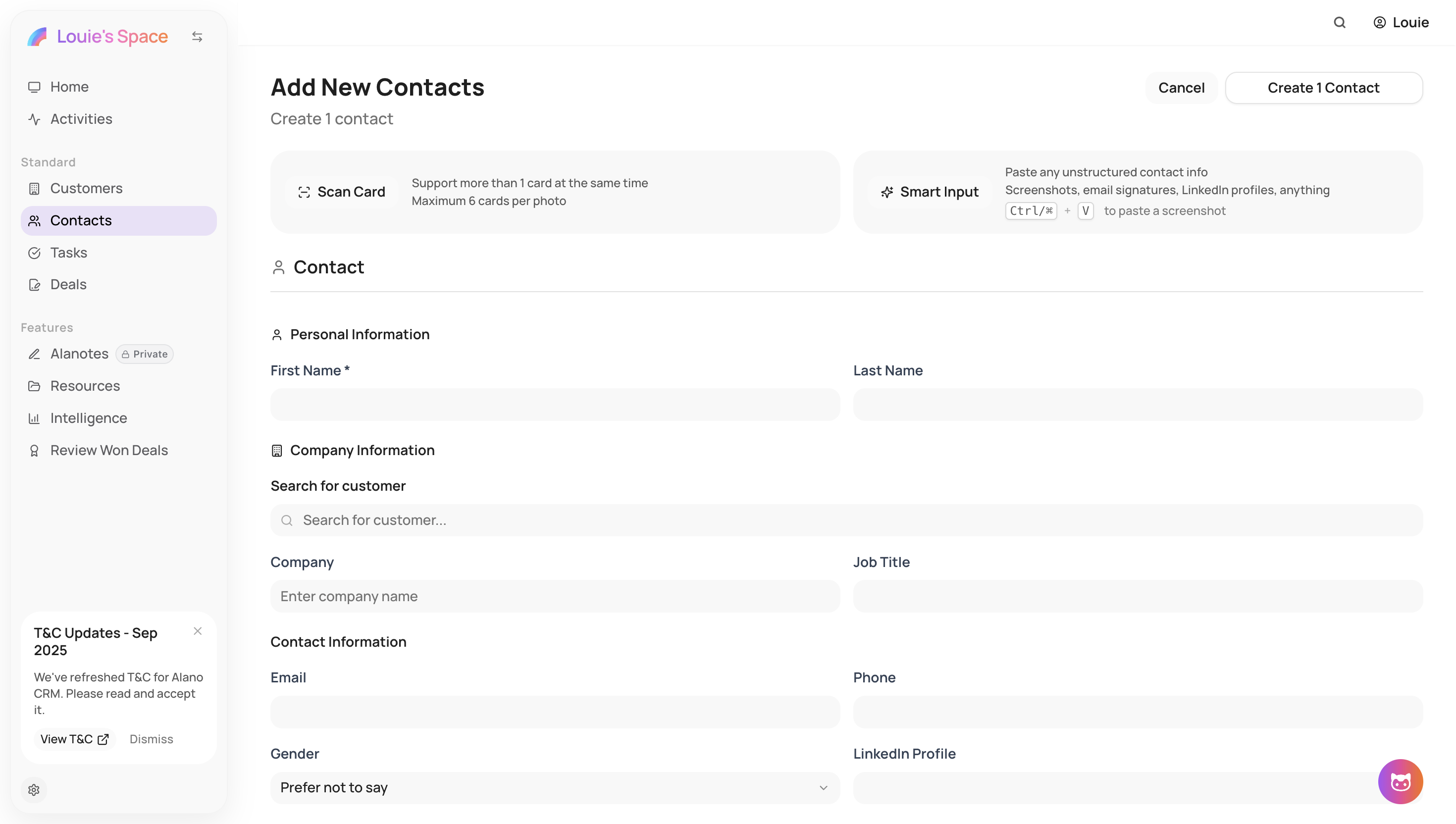
Step 2: Upload name card photos
Upload one or more photos of business cards
(up to 6 cards at a time)
Photos can be uploaded from:
-
Mobile devices
-
Desktop or laptop
Step 3: Review scanned information
After uploading, Alano scans the images and extracts contact details.
Review the detected information and make any necessary edits before saving.
Step 4: Save the contact
After reviewing, choose how to save each scanned contact:
-
Add as a new contact
-
Add to an existing customer
-
Create a new customer and add the contact
Once selected, proceed to add the contact to Alano.
Summary
-
Scan up to 6 name cards per upload
-
Upload photos from mobile or desktop
-
Review and edit extracted information
-
Save contacts into new or existing customers
What’s next
After saving your contacts, you can:
-
Add notes or tags
-
Assign contacts to deals
-
Continue enriching contact information with Alano AI
Name Card Scan helps you capture leads quickly and keep your CRM up to date with minimal manual work.