
Flow Builder
The Flow Engine lets you create automated workflows that run in the background based on triggers and actions you define, without manual intervention.
On this page
How it works
Each flow is built from nodes on a visual canvas. A flow must start with exactly one trigger — the event that kicks it off. From there, you add actions and conditions to define what happens next. Nodes connect in sequence to form the complete workflow.
Available triggers
-
Manual Trigger - run the flow on demand at any time
-
Record Created - fires when a new record is created in your CRM
-
Record Updated - fires when a record is updated and specific fields change to target values
Available actions and conditions
-
Actions:
-
Aggregate Records — aggregate records using a function and optional filters
-
Check Recent Activities — fetch the last activity time for an entity, useful for detecting inactive records
-
Create Record — create a new record for a selected entity type
-
Lock/Unlock Custom Object — lock or unlock a custom object record
-
Select Record — retrieve a record by ID and store it as a variable for use in subsequent nodes
-
Update Record — update an existing record using field mappings
-
Webhook Outbound — send data to an external webhook endpoint
Conditions:
- If / Else — branch the flow based on conditions
Utilities:
-
Set Variable — set a variable value for use in later steps
-
Wait — pause the flow for a specified amount of time
Integrations:
-
Send Email — send an email using configured recipients, subject, and content
-
Slack Message (Coming Soon) — send a message to Slack via webhook
-
How to create a flow
Step 1: Open Flows
-
Go to Settings
-
Click Flows
-
Click Create Flow
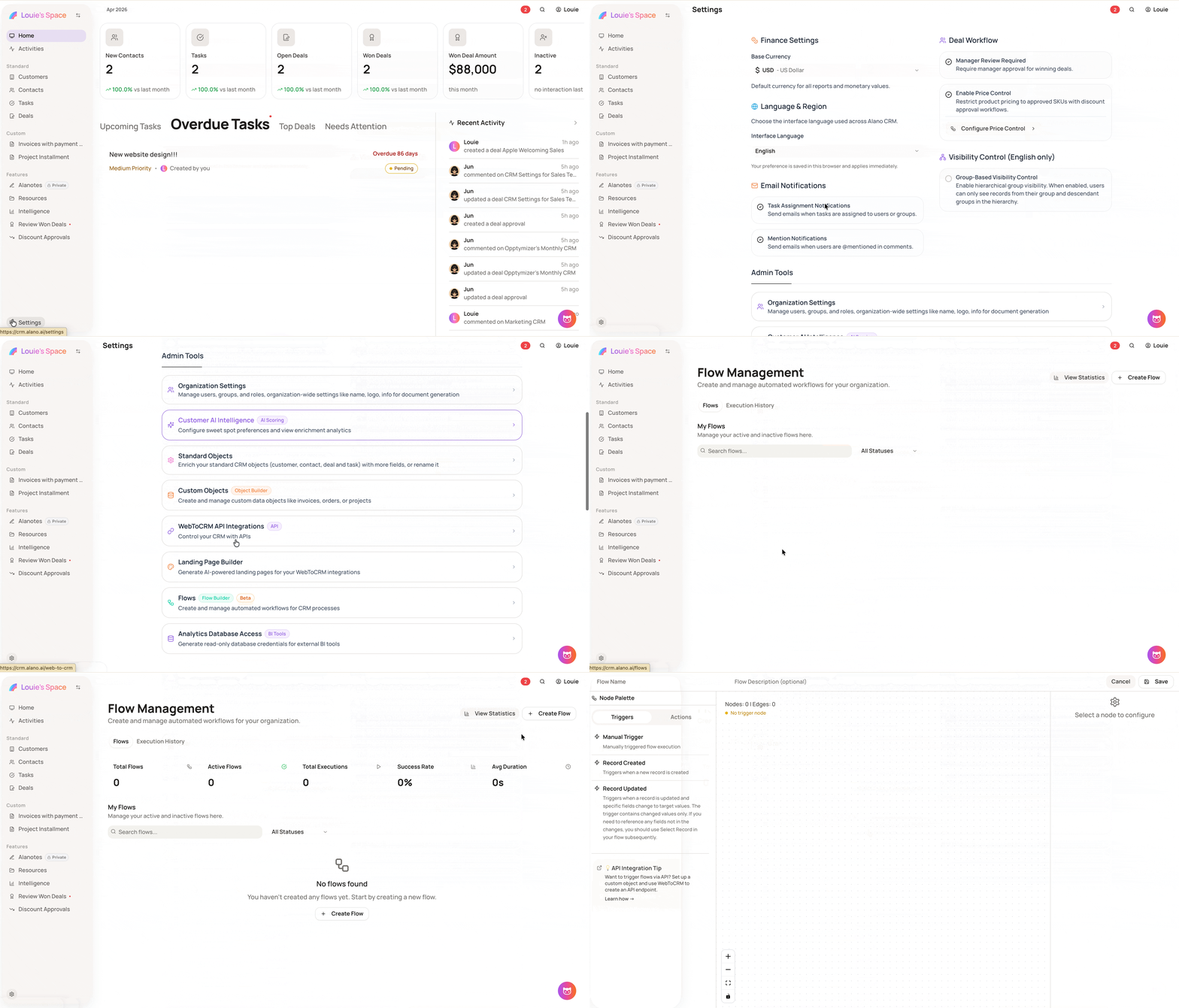
Step 2: Name your flow
-
Enter a Flow Name
-
Add a Flow Description (optional)
Step 3: Add a trigger
-
In the Node Palette, select the Triggers tab
-
Click a trigger to add it to the canvas - each flow requires exactly one trigger to start
Step 4: Add actions and conditions
-
Select the Actions tab in the Node Palette
-
Add the actions or conditions your flow needs
-
Connect nodes in sequence on the canvas to define the order of execution
-
Click each node to configure it in the right-side panel
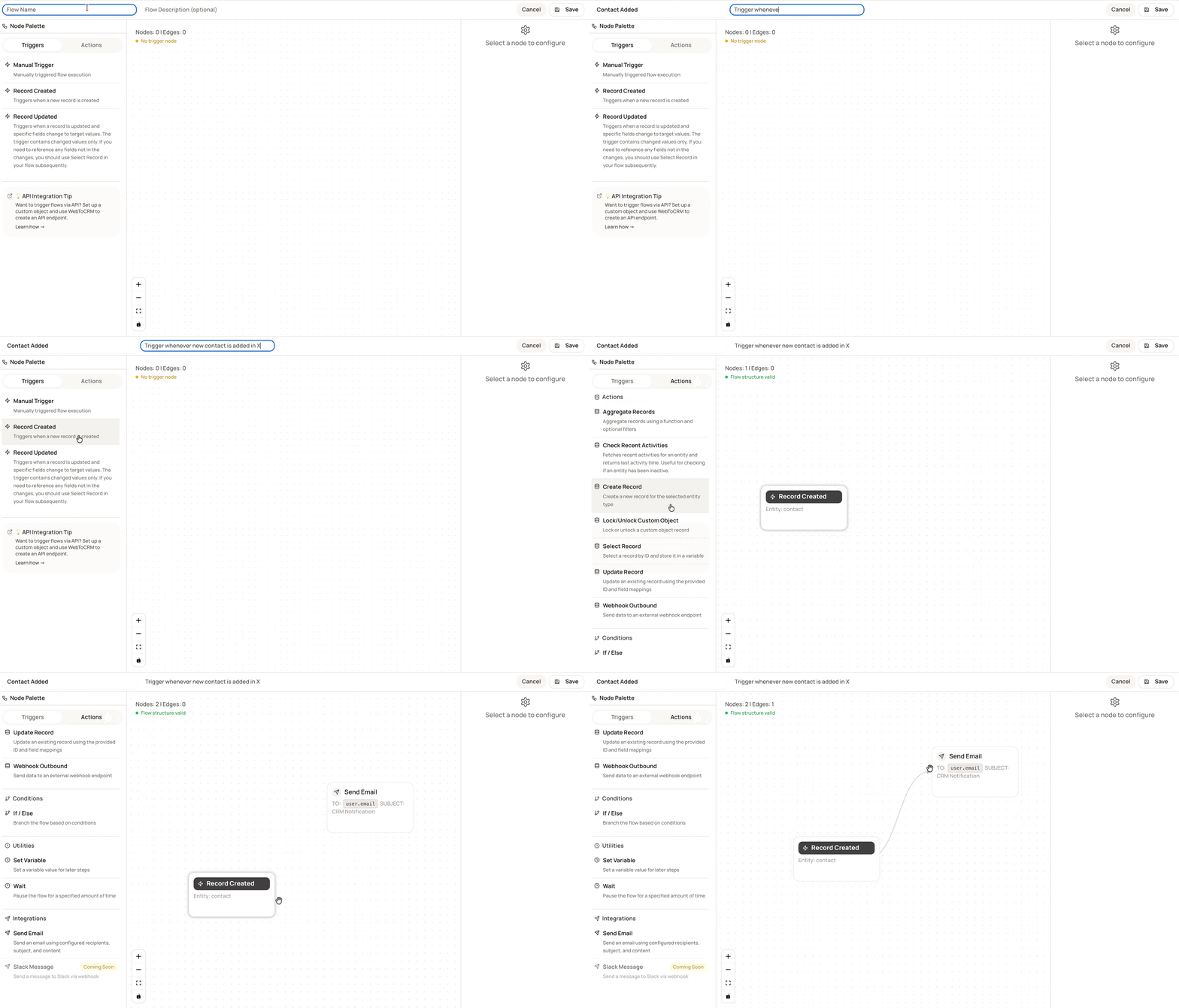
Step 5: Save
Click Save to activate the flow.
-
The canvas will show a warning until a trigger node is added
-
If you need to reference fields not included in a Record Updated trigger, add a Select Record action immediately after to retrieve the full record
-
To trigger flows via API, set up a custom object and use WebToCRM to create an API endpoint